

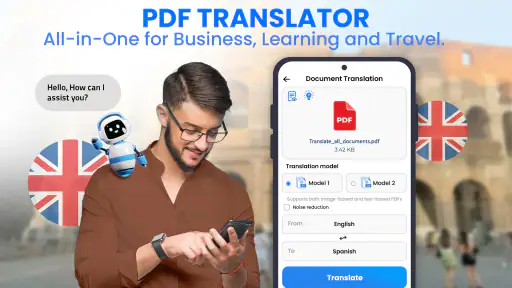
I tested All Translate: Photo, PDF, DOC as a practical productivity app rather than treating it like a simple phrase translator. Its most useful idea is the ability to move between several kinds of content—documents, images, spoken words, typed text, and what is visible on the screen—when the goal is to understand another language without switching between several separate tools. That sounds convenient, but the real question is whether the workflow saves time when the material is longer or messier than a single sentence.
My overall impression is positive. I would recommend it to someone who regularly receives foreign documents, photographs signs while traveling, or needs a quick translation from a page that is difficult to copy. I would not treat it as a replacement for a professional translator, a careful human review, or a dedicated document-editing workflow. The app is strongest when speed and access matter more than perfect formatting or polished final wording.
One translation workspace for documents, images, voice, and screen content
All Translate belongs in the productivity category because its value is less about casual entertainment and more about removing a small but recurring obstacle from everyday work. Daily Tool Labs presents it as a free app for translating multi-page PDF files, DOC files, camera captures, voice, text, and screen content into other languages. In practice, that broad range changes how I approach a translation task: instead of first asking how to extract the words, I can start with the source I already have.
That distinction matters. A normal text translator is comfortable when I can select and paste clean sentences. Real material is often not clean. It may be a photographed menu, a scanned instruction sheet, a document attachment, or text displayed inside another app. The useful capability here is not simply “translation”; it is turning different input formats into a translation starting point.
The app has a 4.6 average from around 15 thousand ratings, and it has passed the one-million-install mark. Those figures suggest that the format-based approach appeals to a substantial audience, although popularity should not be confused with professional-grade accuracy. I still judge the result by the source, the language pair, and how much precision the situation demands.
It is free to install and carries an Everyone age rating, which makes it easy to try on a shared family device or a personal phone without a complicated entry barrier. The current version is 1.0.93, and it runs on Android 8.0 or later. Optional purchases range from $2.49 to $99.99 per item, so I would pay attention to the available plan and the limits shown in the app before relying on it for frequent work.
Why the input type makes a difference
With a typed sentence, translation is usually straightforward: enter the wording, choose the languages, and inspect the result. A photographed page adds another stage because the app must first recognize the writing. A PDF or DOC file can contain multiple pages, headings, tables, or unusual spacing. Voice introduces pronunciation, background noise, and the possibility that a speaker changes direction halfway through a sentence.
That extra processing is where the app becomes useful and where its limitations become visible. If the source is sharp, well lit, and laid out simply, the workflow can feel much faster than manually retyping everything. If the page is crooked, decorative, handwritten, or crowded with columns, I would expect to spend time checking the extracted content before trusting the translation.
This is the first non-obvious tip I would give a new user: choose the cleanest source before choosing the translation mode. If you have both a photograph and the original document, use the original file. If you have a printed page, take a new, flat, well-lit image instead of using a distant snapshot. The app can only translate what it can identify correctly, and a poor source creates errors before language quality even becomes the issue.
How the workflow feels with a multi-page file
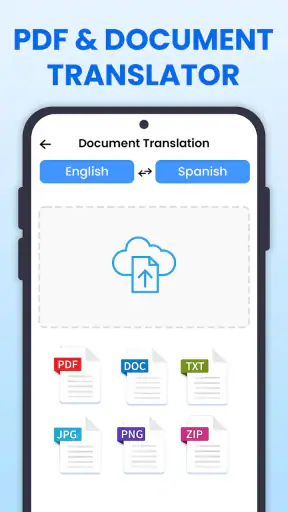
A multi-page document is the clearest test of the app’s central promise. I would use this mode for a travel guide, a set of instructions, or a work attachment that I need to understand quickly. The advantage is immediate: I do not have to copy each paragraph individually or photograph every page one after another. The document remains the starting point, which is a more sensible workflow for longer material.
Still, I would not read the translated file as if it were automatically ready for publication. A translation can communicate the main meaning while losing a technical distinction, a warning, or the relationship between a heading and the paragraph below it. Formatting can also affect comprehension. A table, footnote, or label may be understandable only when viewed alongside the original page.
My practical method would be to translate the whole file for orientation, then return to the original whenever a sentence affects money, safety, deadlines, legal obligations, or technical setup. This two-pass approach is more useful than expecting one tap to produce a final document. The first pass answers, “What is this file about?” The second pass checks the parts where an approximate meaning is not enough.
Another helpful habit is to work in sections mentally, even when the file is long. I would note the pages that contain the information I actually need and compare those pages carefully with the source. That keeps the app’s speed advantage while avoiding the false confidence that can come from skimming a long machine-translated document.
Camera translation is more than pointing at a sign
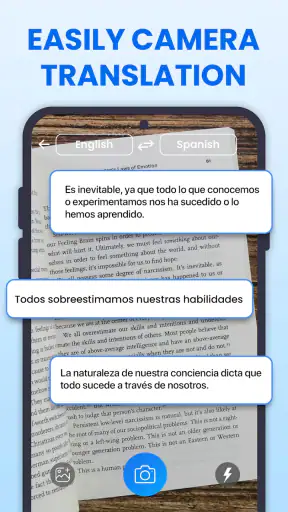
The camera option is likely to be most useful when the text cannot be copied. A menu, product label, notice, or instruction card can be translated from a photograph rather than typed by hand. In a busy situation, that difference is substantial. I can imagine using it in a shop, at a station, or while checking an imported product whose packaging has no convenient language setting.
For better results, I would capture one readable section at a time instead of trying to fit an entire wall of text into a single frame. Keep the phone parallel to the page, avoid glare, and make sure the smallest words are large enough on the screen. This is not just general camera advice; it directly affects whether the app sees separate words or a blur of shapes.
The trade-off is that a camera translation may lose context. A short label can have several possible meanings, and a menu item may depend on the surrounding descriptions. I would use the result to make a decision quickly, but I would be cautious with medical directions, allergy information, or warnings. In those cases, I would confirm the important wording through another source or a person who knows the language.
Voice, typed text, and screen content fill different gaps
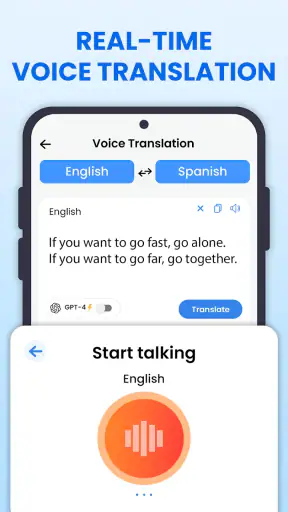
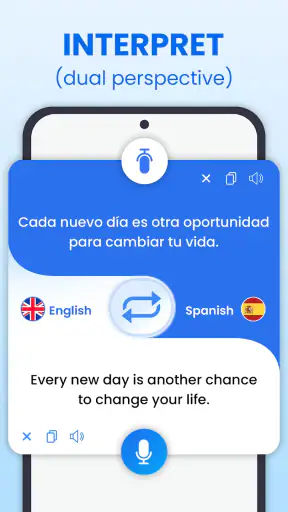
Voice translation is valuable when the source is another person rather than a document. It can help during a basic conversation, when asking for directions, or when trying to understand a spoken explanation. Its usefulness depends heavily on clear speech and a quiet enough environment. Accents, interruptions, and overlapping voices can make a short exchange harder to interpret than a written sentence.
I would therefore use voice as a bridge, not as a formal interpreter. Keep questions short, let the speaker finish, and repeat the important part in simpler wording if the result seems strange. For a complicated conversation, typed text may be slower but easier to inspect. This is one of the app’s meaningful trade-offs: voice is convenient at the moment, while text gives me more control over what was actually entered.
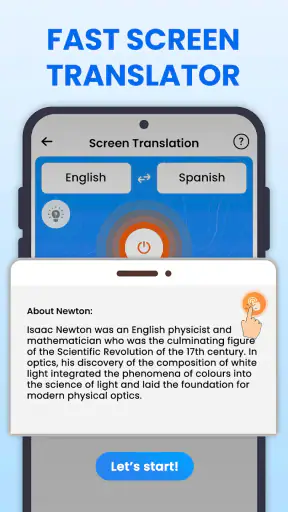
Screen translation addresses a different problem. Sometimes the words are visible inside an app, a webpage, or an image, but selecting them is awkward or impossible. Being able to work from what is on the screen can remove that copying barrier. I see this as especially useful for short instructions, interface labels, or messages that need immediate understanding.
However, I would avoid using screen translation as a shortcut for every page. A screen can contain menus, buttons, captions, and background text all at once, so the result may require interpretation. If I need a precise paragraph, I would prefer opening the original file or entering the text directly when possible. The screen option is best when access is the main obstacle.
A realistic everyday scenario: understanding a foreign rental document
Imagine that I am traveling and receive a rental document as a PDF. I need to find the pickup instructions, the return conditions, and any notes about deposits. I could translate the file first to understand its structure, then search through the translated content for the sections that matter. If a clause looks important or ambiguous, I would compare it with the original page rather than accepting the first wording automatically.
If the agent later hands me a printed notice, the camera mode becomes the natural continuation of the same task. If an employee explains a change verbally, voice translation can help with the initial exchange. If a booking app displays a message that cannot be copied, screen translation may provide the missing bridge. The strength is not that every mode is perfect; it is that the same productivity tool can follow the situation as the source changes.
This scenario also shows when I would not rely on it alone. A rental agreement can involve financial responsibility and legal language. I would use the app to understand the document and identify questions, but I would seek human clarification before signing if a translated clause affects a deposit, insurance, cancellation, or liability.
The important trade-offs before making it a daily tool
The first trade-off is convenience versus verification. The more difficult the source format, the more valuable the app becomes, but the more opportunities there are for recognition or context errors. Clean typed text is usually easier to check than a crowded photograph or a long scanned file. I would not measure success only by whether the app produces a translation; I would ask whether I can quickly verify the parts that matter.
The second is breadth versus specialization. A single app that handles PDFs, DOC files, photos, voice, text, and screen content is convenient, but a dedicated document editor may offer better control when layout must be preserved. A conventional text translator may be preferable for a short sentence that I need to refine repeatedly. A human translator is the better choice for publication, contracts, regulated instructions, or sensitive professional material.
The third trade-off concerns cost over time. The app is free to download, but in-app purchases run from $2.49 to $99.99 per item. That range makes it important to understand what the free experience covers and whether a frequent workflow depends on a paid option. I would test the specific type of translation I need before committing to a larger purchase, especially if my use is occasional rather than daily.
There is also a privacy question that I would take seriously whenever I work with personal documents, employment files, identity papers, or private conversations. I would avoid treating any translation service as a secure archive for sensitive material unless I had independently reviewed its current privacy details. For ordinary travel signs or public information, that concern is smaller; for confidential files, it should influence the decision.
Another limitation is the danger of reading a fluent result too confidently. Smooth wording can hide a wrong name, number, unit, or instruction. I would keep the original visible for anything operational. A useful technique is to translate a short passage, identify the key nouns and actions, and then check those against the source rather than focusing only on whether the whole paragraph sounds natural.
Small habits that improve the results
I would begin by identifying the purpose of the translation. If I only need the general topic of a document, speed is more important than formatting. If I need to follow instructions, I would prioritize a clean source and careful checking. If I need to send the wording to another person, I would edit the result for clarity instead of forwarding it without context.
For photographs, I would crop out unrelated objects and capture text in readable groups. For voice, I would use short sentences and pause between ideas. For PDFs and DOC files, I would first locate the pages that contain tables, warnings, or unusual formatting, because those deserve closer attention than ordinary paragraphs.
I would also keep the original language in view whenever possible. This helps me notice proper names, measurements, product codes, and words that the translation may interpret too broadly. The app is most effective when it reduces the mechanical work while I remain responsible for the final judgment.
These habits reveal a broader strength: the app is not only for people who “need a translation.” It is for people who need to make foreign-language material usable quickly. That includes a student checking a reading, a traveler navigating printed information, a family member understanding a message, or a worker getting the gist of an attachment before asking a colleague for help.
Who will gain the most from this app?
I think the best match is someone who encounters multiple input types. If your translation needs are mostly short typed sentences, a simpler translator may feel faster and less distracting. All Translate becomes more compelling when your day includes a mixture of documents, images, spoken language, and text trapped inside other screens.
It is also a good fit for people who value an immediate first pass. Students can use it to understand reading material before studying the original wording. Travelers can use it when signs and menus are not selectable. Small-business owners can use it to inspect incoming documents before deciding which sections need professional attention. In each case, the app saves effort at the discovery stage.
I would be more cautious about recommending it to someone who needs certified, publication-ready, or legally dependable translations. The app can help that person understand a source and prepare questions, but it should not be the final authority. I would also suggest skipping it if you dislike checking machine-generated wording or if your documents are consistently confidential.
Daily Tool Labs has made a practical choice by bringing several translation entry points together instead of forcing users to prepare every source in advance. The result is not a magic solution for language barriers, but it is a useful workbench for the awkward moments when the words are locked inside a file, photograph, voice recording, or screen.
After using it, I would keep it installed for travel, mixed-format documents, and quick explanations. My recommendation comes with one rule: use it to reach understanding faster, then verify anything where a mistake would matter. With that expectation, the free app offers a convenient productivity layer, while its paid options may make sense for people whose translation tasks are frequent enough to justify them.


